Section: Red Dead II/O
This section is dedicated to the Red Dead II/O category, accessible on the left side of the software.
Installation / File Integrity Verification
The File Integrity section allows you to verify your game files against those officially provided by Rockstar Games. This can be useful in the following cases: - If you encounter technical problems. - When error codes prompt you to reinstall the game. - If your game version has been modified.
Verification Steps
- The software analyzes the versions of your game based on the installed launchers (Rockstar Games Launcher, Epic Games Launcher, Steam). This analysis speeds up file localization.
- If multiple versions are detected, select the one you wish to analyze.
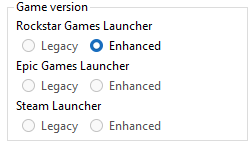
Starting the Analysis
To begin, enable the "Close the associated application on verify game files" option before launching the analysis.

Analysis Results
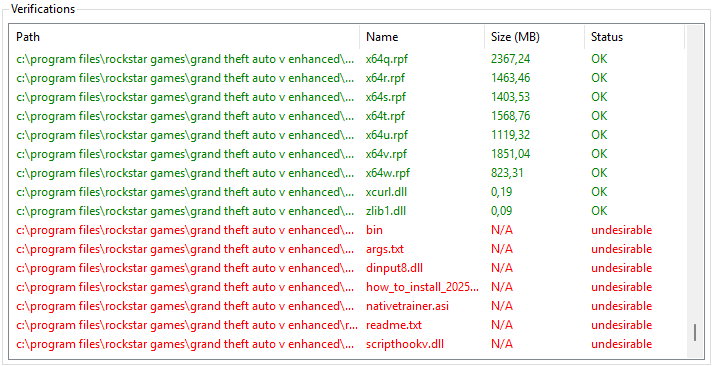
- Missing, Corrupted, or Undesirable Files: These problems may result from modifications to game files or the use of mods.
- If everything is correct, the results will show 0 everywhere.
Here is an example where undesirable files are detected (intentionally placed for documentation purposes):
Additional Options
When undesirable or corrupted files are detected, two options become available:
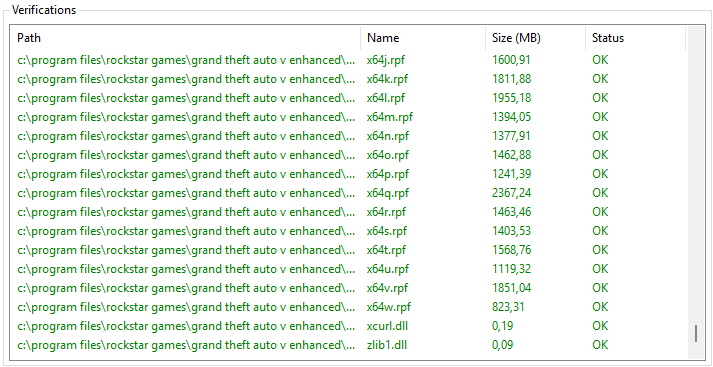
1. Clean Undesirable and Corrupt File
- Automatically deletes all files that do not match the official versions.
- Modifications to base official files will also be removed.
- A new verification via your launcher may be needed to re-download missing files.

2. Move to a Folder
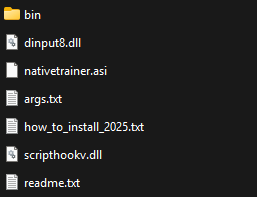
- Allows you to sort official and modified files.
- Useful for playing GTA Online without mods while keeping them in a temporary folder.
- Select a target folder to move the modified files. This folder will open automatically at the end of the process.

Conclusion
Your files are now cleaned and conform to the official version.
If your games are still not functioning correctly, perform a verification via the launcher used to download the missing files.
Commandline / Settings
⚠️ Warning! Modifying game settings via this method requires advanced knowledge. Incorrect configuration could corrupt your files and prevent the game from launching.
The Settings section allows you to adjust the global game settings.
To begin:
1. Let the software automatically detect your game version.
2. This simplifies the task of modifying the configuration file.
If you cannot access the settings, launch the game once to initialize the files.
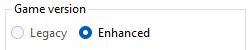
Once detection is complete, your settings will be displayed:
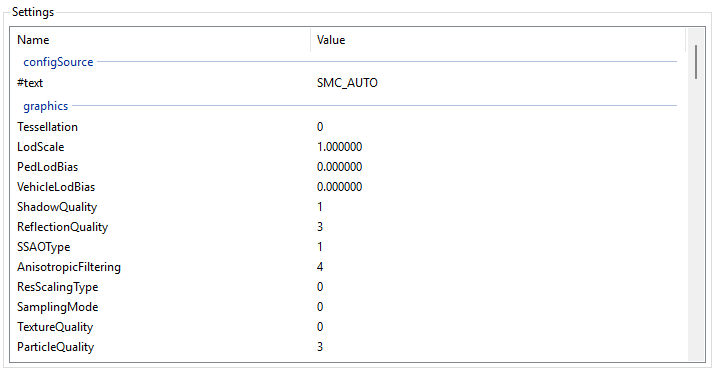
Certain settings allow customization of graphics, audio, video, or the game environment.
⚠️ Rockstar Games does not provide official documentation for these settings. Proceed cautiously when modifying them.
Save your changes by clicking "Save Settings".
Commandline / Launch Commands
Launch commands for Red Dead II allow customization and optimization of the game from launch. They are primarily used for: - Adjusting game performance according to your hardware. - Resolving technical issues. - Configuring specific parameters for a tailored experience.
Modifying Launch Commands
- The software will analyze the available game versions. Select the one you wish to modify.
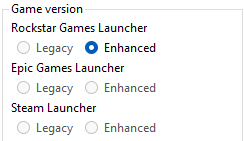
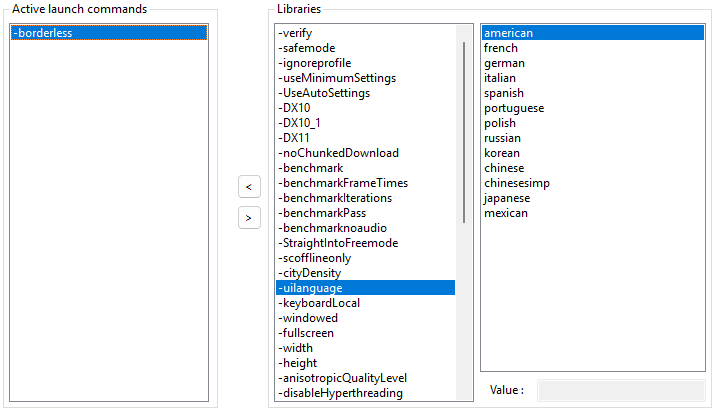
- You will access three panels on the right: Active Launch Commands and Libraries.
Your current configuration can be found in Active Launch Commands:
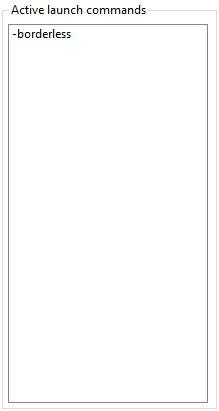
Available settings are listed in Libraries:
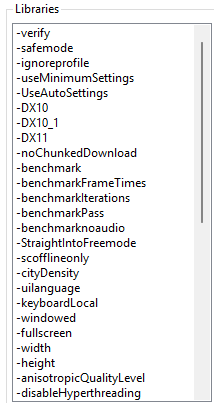
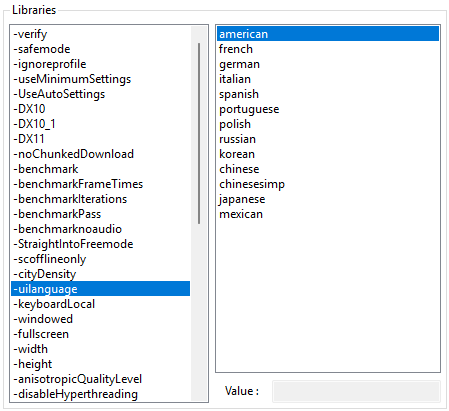
Adding Necessary Arguments
Some settings require specific arguments. These will appear on the right panel.
Select an argument, then use the arrows to move it between Active Launch Commands and Libraries.
Save
Launch command modifications are automatically saved after each change.
Strict Rule Management
- Join an online session and create a solo public session (see the next point).
- Invite your friends to the session and ask for their IP address to add them to your whitelist.

- Enter their username and IP address, then click "Add to the whitelist".
To remove a user from the list, right-click and select "Remove".
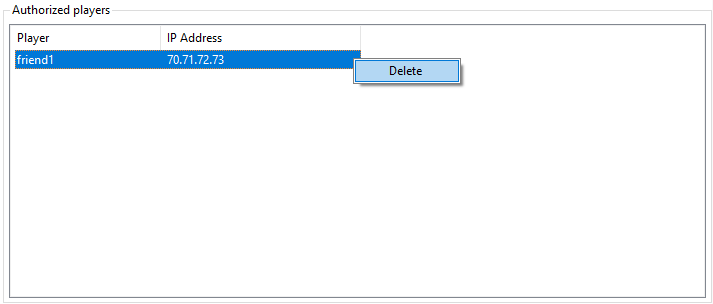
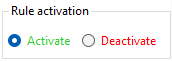
- Once the players are added to the list and present in your session, activate the rule.

Important Points:
- If the player list is empty, the rule will automatically deactivate.
- If you exit the software without deactivating the rule, it could cause issues when accessing GTA Online. However, accessing this section in the software will automatically disable the rule to prevent any problems.
- Nowadays, a simple restart of your network router can be enough to change your IP address. Avoid sharing your IP address with individuals whose reliability seems uncertain to you. Take care of yourself!
Solo Public Session Management
Creating a solo public session may seem complicated, but this software makes it automatic with just one click.
- Join an online session.
- Click "Alone in the current session".

- Wait a few moments. Once the process is complete, you will be alone in the public session.